Make any image dance (Higgsfield Motion Control)
On Higgsfield, copy motion from any dance video and apply it to a still photo: Video → Motion Control → Motion library, add a motion clip and your character image, pick Kling 3.0 Motion Control, and generate—a parent-run paid account required.
How to use it
Use toolEverything you need for this tool is on this page. Overview, safety, and pricing are in “More about this tool” at the bottom.
Only use photos and videos you have permission to use. Never make someone’s body move in ways they did not agree to—check your school’s rules on AI video before sharing or handing in a project.
Flow: open higgsfield.ai → Video → Create Video → Motion Control → Motion library → add motion + character image → Kling 3.0 Motion Control → Generate. Higgsfield is paid—verify plan and credits with a grown-up first.
-
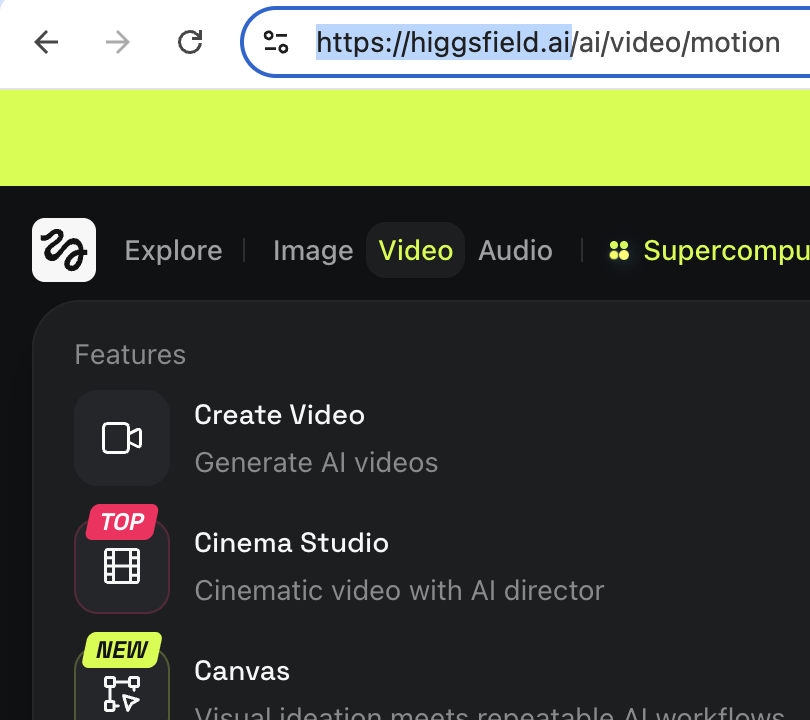
Open Higgsfield and go to Video → Create Video
In your browser, go to higgsfield.ai and sign in with a family account. In the top navigation, click Video. Under Features, choose Create Video (“Generate AI videos”).
Tip: If you land on Explore, use the Video tab first—Motion Control lives under Video, not Image or Audio.
-
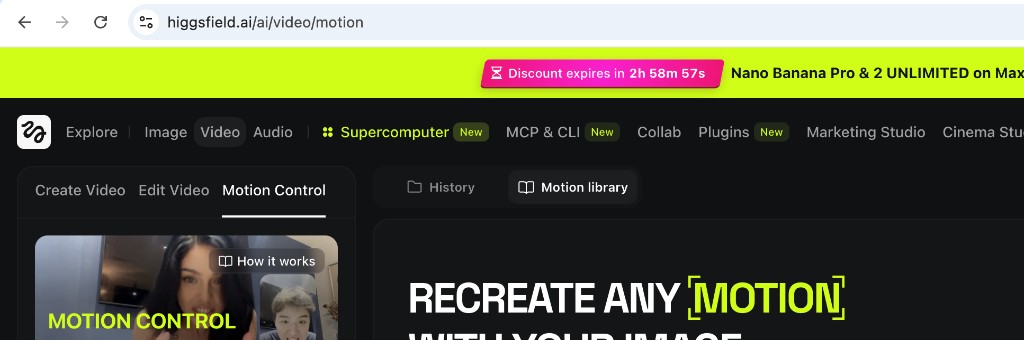
Open Motion Control
On the video page, click the Motion Control tab (next to Create Video and Edit Video). You should see the headline “Recreate any [motion] with your image” and options for History and Motion library.
-
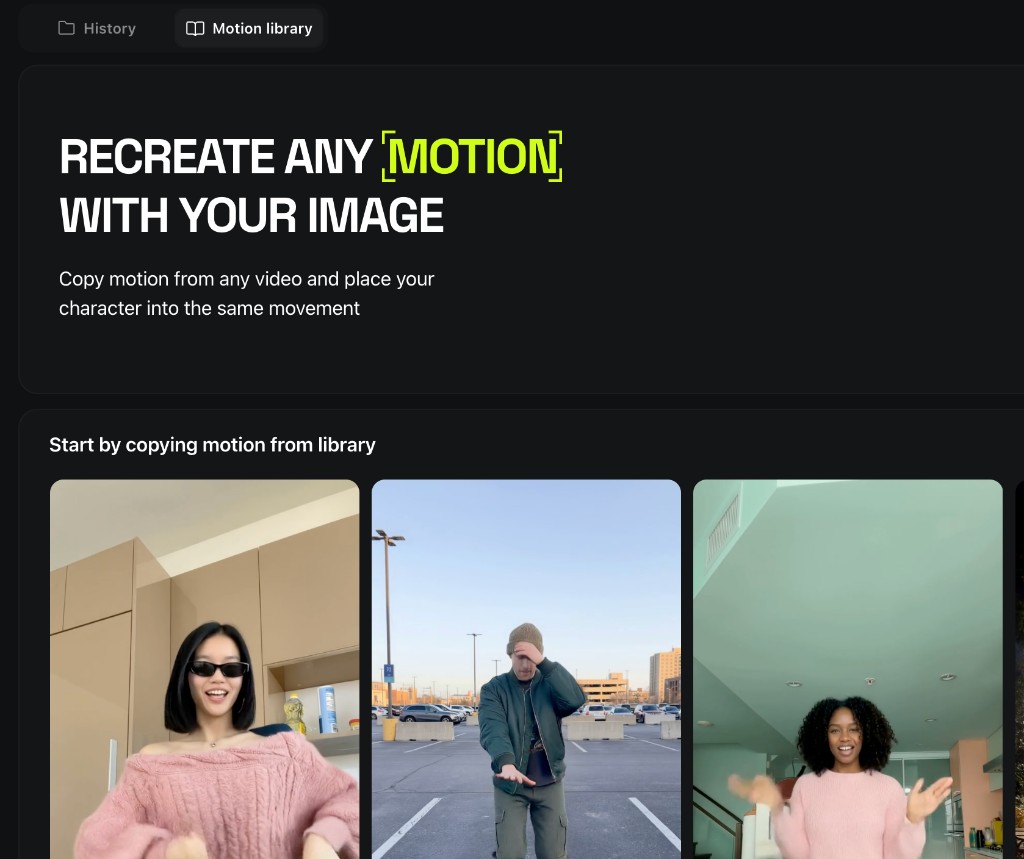
Browse the Motion library
Click Motion library (book icon). Scroll the gallery—“Start by copying motion from library”—and tap any clip whose moves you want to copy (dance, walk, gesture, and more). You can also upload your own reference video later from Add motion to copy.
Tip: Library clips are a fast way to try the tool before filming your own 3–30 second motion video.
-
Add motion to copy and your character image
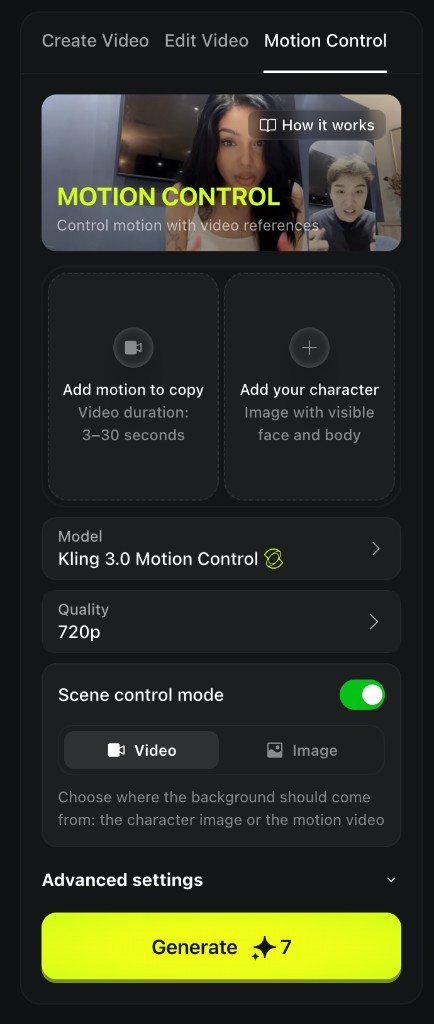
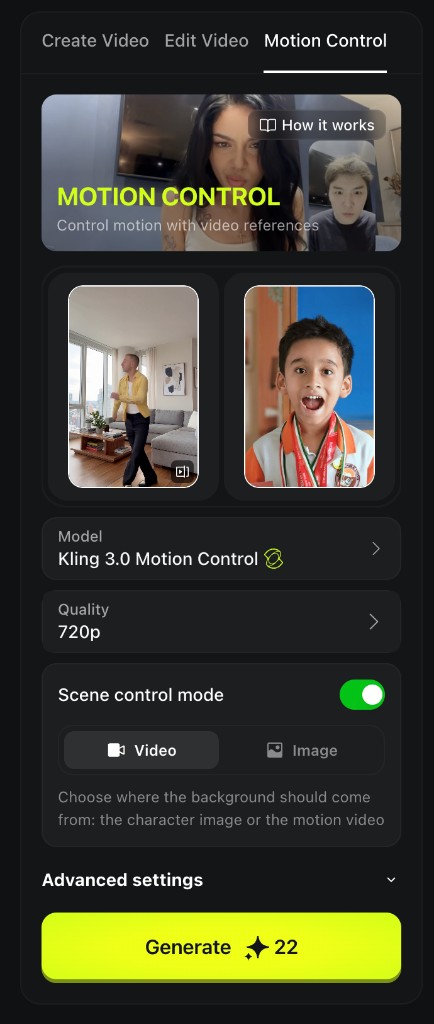
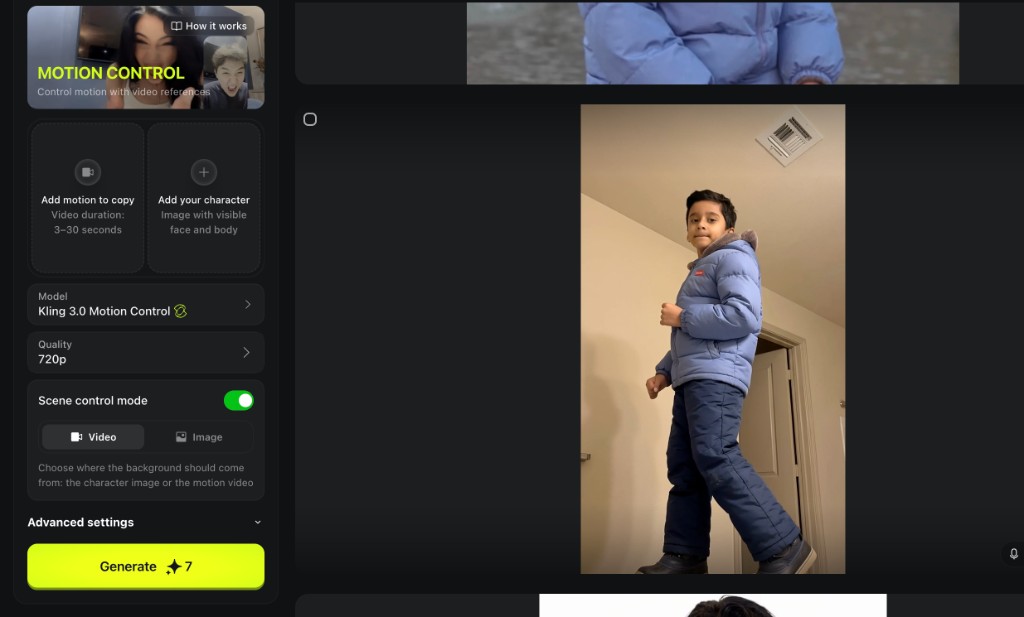
Back in Motion Control, fill both slots: Add motion to copy—upload a short video (about 3–30 seconds) or keep the library pick you chose; Add your character—upload a photo with a visible face and full body (front-facing works best).
-
Choose Kling 3.0 Motion Control and Generate
Open the Model dropdown and select Kling 3.0 Motion Control. Set Quality (for example 720p). Under Scene control mode, pick whether the background comes from your Video (motion clip) or Image (character photo). Click the green Generate button and wait—credit cost appears on the button (often 7–22 credits).
Tip: Shorter motion clips and simpler poses finish faster and use fewer credits. If the face drifts, try a clearer full-body photo.
-
Watch your dancing video
When processing finishes, play the preview on the right—your still image should move like the reference video. Download only if the product allows and your use follows consent and school rules. Ask follow-up generations to tweak quality or try a different library clip.
More about this tool — overview, features, safety, pricing
Overview
Higgsfield Motion Control copies body movement from a reference video and applies it to a character photo—great for “make my drawing dance” or silly family clips when everyone consents.
This is a paid workflow: you need a subscription with monthly credits; each Generate spends credits based on model, quality, and length.
Results depend on photo pose, lighting, and how clear the motion video is—front-facing full-body shots and simple dance moves work best for kids’ first tries.
Key features
- Motion library. Pick ready-made dance and movement clips instead of filming your own reference video.
- Video or image background. Scene control mode lets you keep the motion video’s setting or your character photo’s background.
- Kling 3.0 Motion Control. The model option called out in this guide; Higgsfield may add or rename models—pick the Motion Control variant your account shows.
- Short clip workflow. Reference videos are typically 3–30 seconds—ideal for TikTok-style dances, not full music videos in one shot.
Safety & privacy notes
Data & accounts
- Requires a Higgsfield account; uploaded photos and videos are processed on their servers. Do not upload images of children or others without explicit permission from a parent or guardian.
Supervision
- Parents should own the account, approve uploads, and review output before kids share clips online or at school.
Content & community
- Motion-transfer AI can look uncanny or be misused—never imply a real person did moves they did not perform. Follow Higgsfield’s terms and local deepfake rules.
Family project ideas
- Library dance challenge. Pick three different Motion library clips and apply the same character photo—compare which move syncs best. (20–30 min)
- Draw then dance. Scan or export a kid’s character drawing, upload it as the character image, and copy a simple library dance. (25 min)
- Background A/B test. Generate twice with Scene control on Video vs Image and discuss which background looks more natural. (15 min)
- Consent check lesson. Before generating, list who appears in the photo and video and whether each person said yes—good media-literacy practice. (10 min)
Pricing & account
Paid — Basic from ~$5/mo — Not free: plans are monthly subscriptions with a credit allowance (for example Basic around $5/mo—confirm on higgsfield.ai/pricing). Each generation costs credits (often 7–22 depending on quality and length).
Account required: Yes
Platforms: web